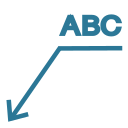
 LEADER (Command)
Creates an annotation leader — a line (or spline) with an arrowhead pointing to a feature, ending with a text label. Leaders are used to annotate specific features that cannot be dimensioned with standard dimension commands.
Quick start
Toolbar > Annotation > Leader, or type LEADER in the Command Panel
Prompts
| Prompt | Description |
|---|---|
| Specify start point of leader | Arrowhead location (points to the feature) |
| Specify next point | Additional vertices defining the leader path |
| Enter Text | Annotation text displayed at the end of the leader |
Keywords
| Keyword | When available | Description |
|---|---|---|
| Format | After 2+ vertices | Change leader appearance (arrow/spline options) |
| Undo | After 2+ vertices | Remove the last vertex |
How to Use
Command: LEADER
Specify start point of leader: (click on the feature)
Specify next point: (click intermediate point)
Specify next point [Format/Undo]: (click end point, then Enter)
Enter Text: Surface Finish Ra 0.8
- Click the arrowhead location (points at the feature)
- Click one or more path points to define the leader line
- Press Enter to finish placing points
- Type the annotation text
Format Options
Type Format during point placement to change the leader appearance:
Specify next point [Format/Undo]: Format
Enter an option [Arrow/None/Spline/Straight]: (choose option)
| Option | Description |
|---|---|
| Arrow | Show arrowhead at the start point (default) |
| None | No arrowhead |
| Spline | Use a smooth spline curve for the leader path |
| Straight | Use straight line segments for the leader path (default) |
Examples
Basic Leader with Arrow
Command: LEADER
Specify start point of leader: (snap to feature)
Specify next point: (click offset point)
Specify next point [Format/Undo]: (Enter)
Enter Text: Chamfer 2x45°
Spline Leader
Command: LEADER
Specify start point of leader: (click on feature)
Specify next point: (click curve point)
Specify next point [Format/Undo]: Format
Enter an option [Arrow/None/Spline/Straight]: Spline
Specify next point [Format/Undo]: (click end point, then Enter)
Enter Text: Note: Clean edge required
Leader Without Arrow
Command: LEADER
Specify start point of leader: (click)
Specify next point: (click)
Specify next point [Format/Undo]: Format
Enter an option [Arrow/None/Spline/Straight]: None
Specify next point [Format/Undo]: (Enter)
Enter Text: See Detail A
Best Practices
| Practice | Benefit |
|---|---|
| Point arrowhead at the annotated feature | Clear identification |
| Keep leader lines short and angled | Avoid clutter |
| Use consistent text style | Professional appearance |
| Use Spline for curved paths | Smoother appearance around complex geometry |
| Place leaders on a dedicated layer | Toggle annotation visibility |
Quick Reference
| Task | Input |
|---|---|
| Create leader | LEADER → start → path points → Enter → text |
| Change to spline | Format → Spline |
| Remove arrowhead | Format → None |
| Undo last point | Undo |
See also: Text Command | Dimension Commands